
Lesson 3.2 — Adding and Working Applicants
Adding and Working Applicants
This lesson shows you how drivers get into the system and how you open and read a driver's record. By the end you can add a driver three ways and find any driver fast.
The applicant list
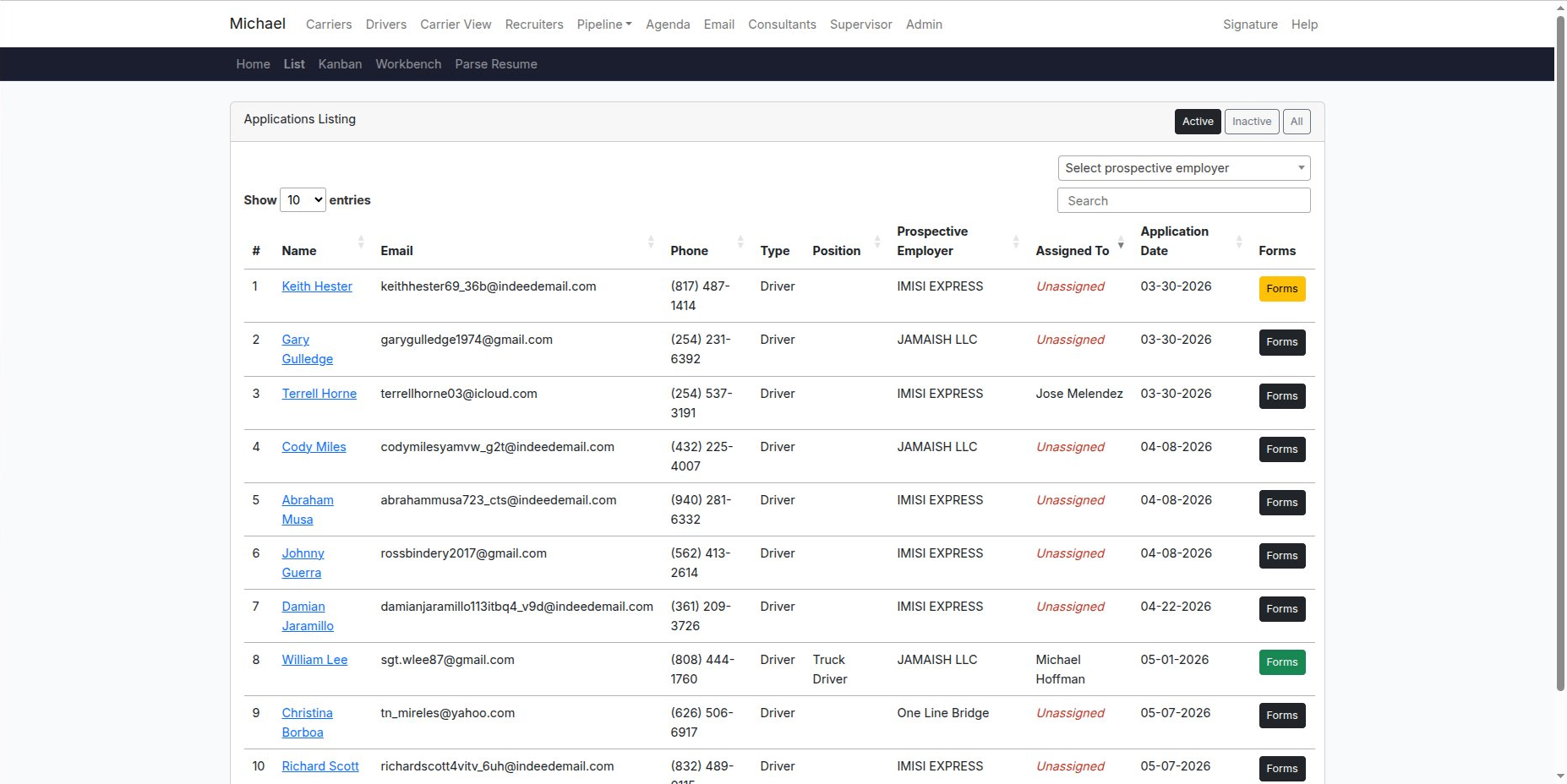
The Status page is every applicant in one searchable list — name, contact, the job, the prospective employer, who it is assigned to, and the date applied. Use it to find one specific person fast, or to scan who is unassigned.
Opening a record
Click a driver's name to open their full record. That is where you read their history, log contact, and move them forward.
Three ways to add a driver
1. Parse Resume — the fastest way
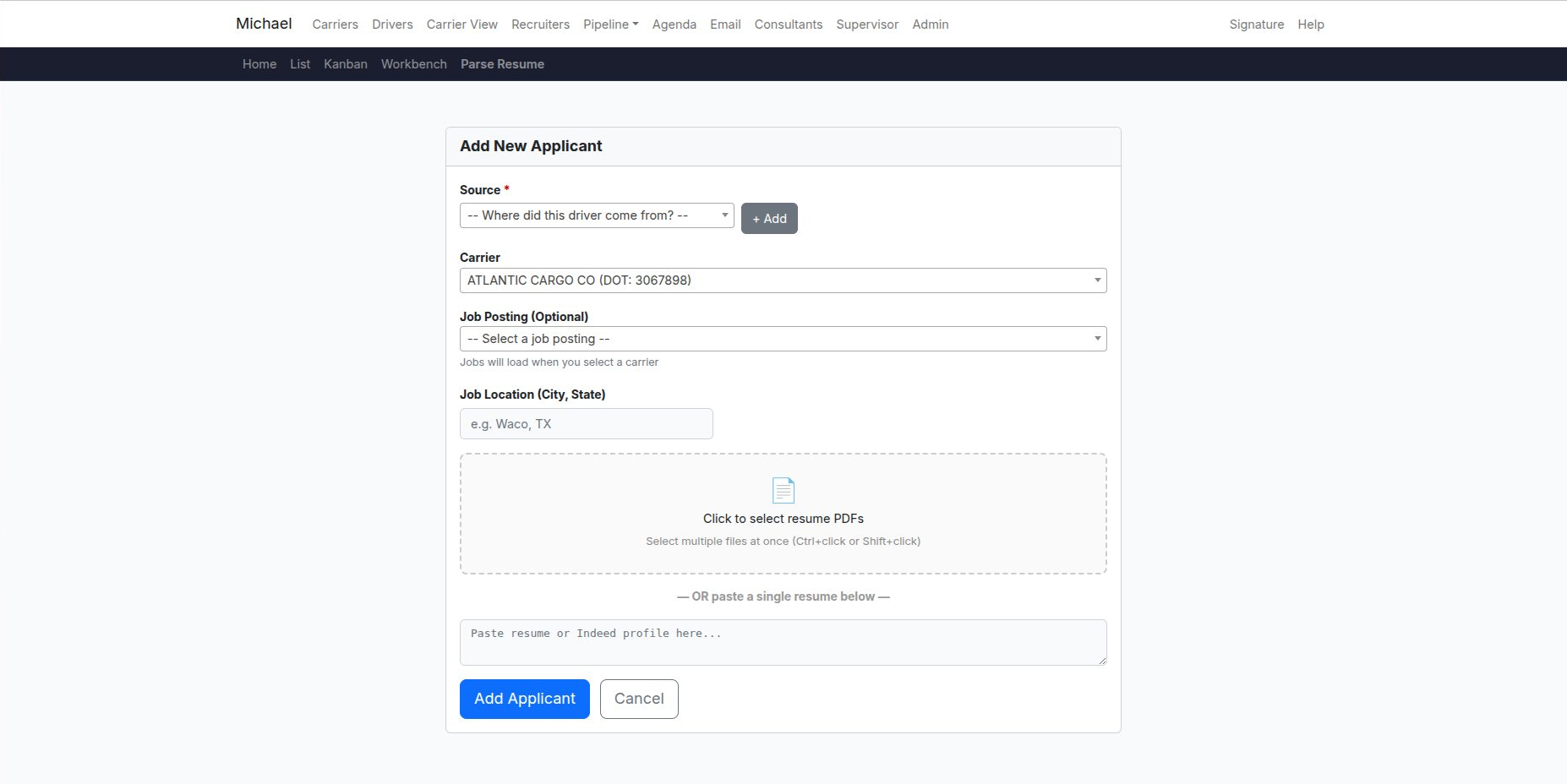
Paste a resume or an Indeed profile, or upload one or more resume PDFs. The system reads it and builds the applicant record for you. Pick the source and the carrier first.
2. New Application — by hand
When a driver gives you their details directly, start a New Application and type them in.
3. The applicant link
Send a driver your applicant link and they fill out their own application, which lands in your list.
Archiving
When a driver is no longer in play, archive the record. It leaves your active list but is not deleted — you can still find it under Inactive.
What protects you
Always set the source and carrier when you add a driver. A record with the wrong carrier sends the driver down the wrong pipeline.