
Lesson 3.1 — Your Desk
Your Desk
This lesson shows you the home screen you start from and come back to. By the end you can get into the system on your phone and name what each part of the dashboard does.
Where you work
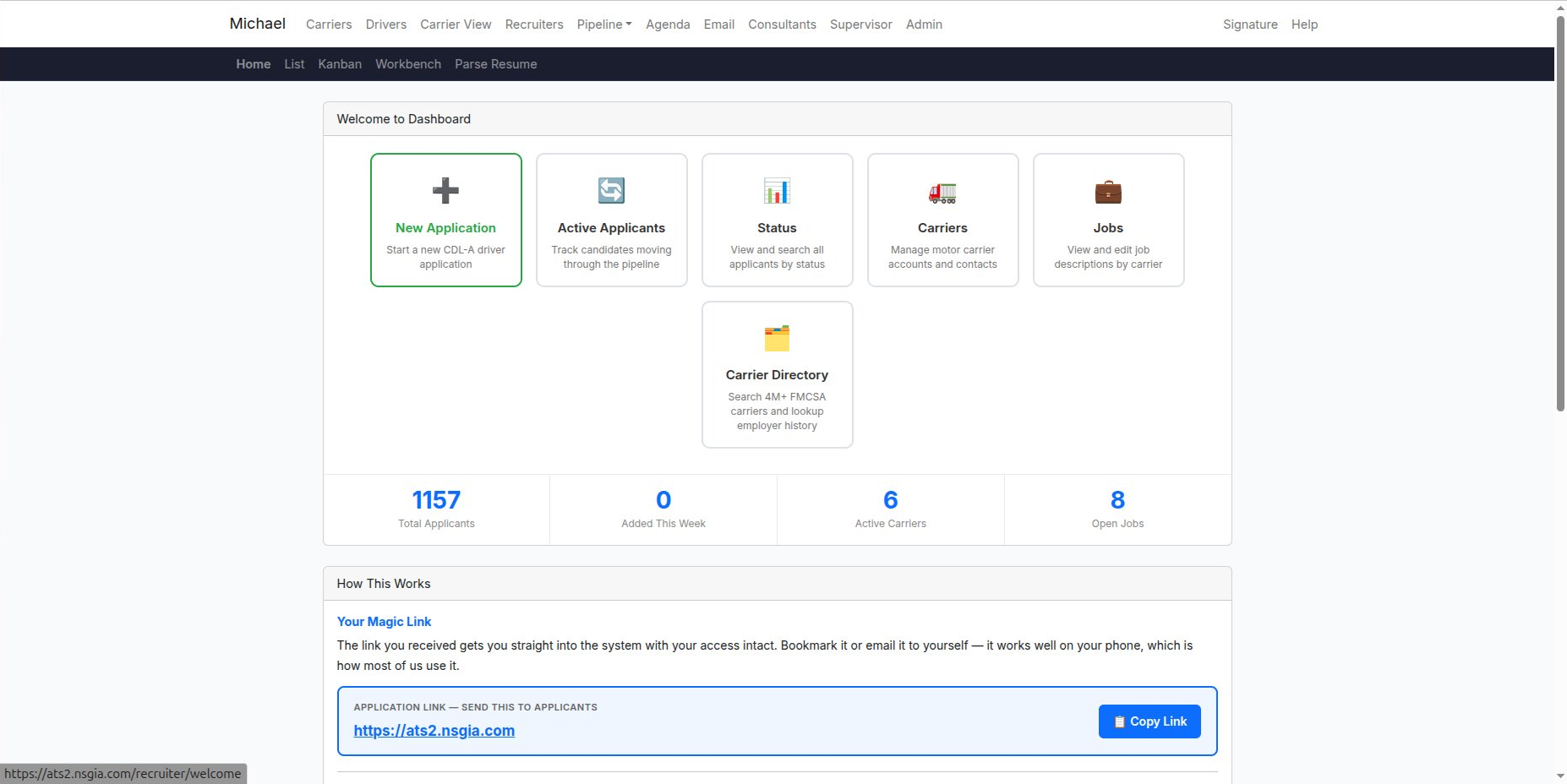
Your home base is the dashboard at ats2.nsgia.com. Every task starts here and comes back here. When you get lost on a screen, this is the screen you return to.
The job in one line: find drivers, work them through the pipeline, and get them hired to a carrier. Everything on the dashboard is one of those three things.
Working a driver — start to finish
Here is the whole path, so the rest of the course has a frame to hang on. Every step has a reason; skipping one is where placements get lost.
- Get a driver. Add a new one with Parse Resume, or claim an unclaimed driver from the pipeline. Claiming is a commitment — once you claim a driver, the work of reaching him is yours, and working the referral is what earns the commission.
- Call first, then send the hello. Call, introduce yourself as his recruiter, and ask if he'd like to see his application and the job again. Then send the Hello — I'm Your Recruiter email while you're on the line: it carries his application link, the job, and the carrier report.
- Keep it out of spam. Stay on the phone and ask him to check for the email. If it landed in spam, ask him to unmark it — it's not spam, you sent it with his permission.
- Talk through the job. Walk the job, take his questions, and make sure it fits — home time, pay, the kind of running. Don't force it.
- Not a fit? Send the Companion. If it's not right, don't lose him. Send the Send to Companion email — an AI chat that helps him find what he's looking for, and you help him land it.
Getting in — your magic link
You log in with a link, not a password. The link you were sent puts you straight into the system with your access already attached.
- Bookmark it, or email it to yourself, so you always have it.
- It works on your phone. Most of the team works from a phone.
One link is not the other. The link on your dashboard that reads ats2.nsgia.com is the applicant link — the one you send to drivers so they can apply. That is not your login link. Keep the two separate.
The dashboard, card by card
- New Application — start a CDL-A driver application by hand, when a driver gives you their info directly.
- Parse Resume — take a resume PDF or a pasted profile and let it build the applicant record for you. The fastest way to add a driver.
- Active Applicants — the pipeline board. Your main work view, every day.
- Workbench — work each driver from one screen: notes, follow-ups, stage, and email.
- Status — the full applicant list, searchable, for finding one person fast.
- Carriers — the carrier accounts you recruit for, with contacts.
- Jobs — the open job descriptions, by carrier.
- Carrier Directory — search the FMCSA index of millions of carriers.
- Companion — the driver job-search assistant. When a driver passes on a job, this is what you point him to.
The four numbers
The dashboard shows four counts so you know where things stand the moment you log in: Total Applicants (everyone), Added This Week (new intake — zero means none came in), Active Carriers (how many are live to recruit for), and Open Jobs (positions waiting to be filled).
What protects you
Bookmark your magic link. Keep the applicant link separate. Start every day on this screen and look at the four numbers before anything else.